
Export Google Maps Saved Places to CSV – Free Converter Tool

Export Google Maps Saved Places to CSV

Convert your Google Maps starred locations, favorite places, and custom lists into a clean CSV spreadsheet. Free, instant, and 100% private — all processing happens in your browser.

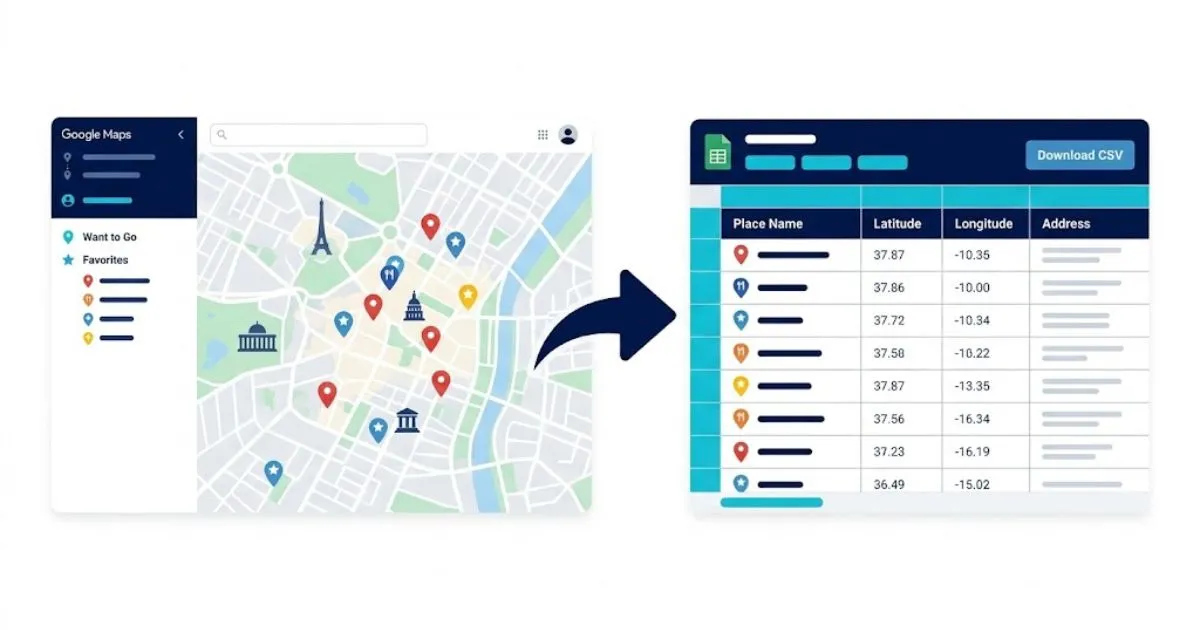
Looking for the easiest way to export Google Maps saved places to CSV? Our free Google Maps saved places to CSV converter makes it simple. Whether you have hundreds of starred restaurants, travel destinations in your “Want to go” list, or carefully curated custom lists — this tool converts all your Google Maps saved places into a clean, organized CSV spreadsheet in seconds. Simply download your data from Google Takeout, upload the file here, and instantly get a CSV file ready for Excel, Google Sheets, or any data tool. Unlike other solutions that require Python scripts or command-line tools, our Google Maps saved places to CSV exporter works entirely in your browser with zero installation needed.

Google Maps Saved Places to CSV converter tool showing upload interface and CSV data preview with place names, coordinates and addresses
📍

Upload Your Google Takeout File

Drop your Saved Places.json or any list CSV file from Google Takeout

📄 Saved Places.json 📊 List CSV files 🌍 GeoJSON
📎

How To Export Google Maps Saved Places to CSV Using Google Takeout

1

Access Google Takeout

Navigate to takeout.google.com and sign in to your Google account that has your Google Maps saved places.

2

Select Google Maps Data

Click “Deselect all”, then scroll down and enable “Maps (your places)” for starred locations with coordinates. Also enable “Saved” to export your custom Google Maps saved places lists.

3

Download Your Data

Click “Next step” and follow the prompts to export. Google will email you a download link when ready.

4

Extract ZIP File

Download and extract the ZIP file. Find “Saved Places.json” in the Maps folder or CSV files in the Saved folder.

5

Upload to This Tool

Click “Choose File” above and select your Saved Places.json or any list CSV file from the extracted folder.

6

Download Your CSV File

Review your Google Maps saved places in the preview table, then click “Download CSV” to save your spreadsheet-ready file with all your locations.

Why Export Your Google Maps Saved Places to CSV Format?

📊

Organize Google Maps Saved Places in Spreadsheets

Convert your Google Maps saved places to CSV and open them in Excel, Google Sheets, or any spreadsheet app for easy sorting, filtering, and organization of your locations.

Use case: Sort restaurants by rating, filter places by country, or create trip-specific spreadsheets from your starred locations.

🗺️

Migrate Google Maps Saved Places to Other Apps

Use the CSV data to import your Google Maps saved places into other mapping services like Apple Maps, OsmAnd, Sygic, or any GPS application that accepts CSV imports.

Use case: Switching from Google Maps or need offline navigation for a trip — export once and import everywhere.

💾

Backup Your Google Maps Saved Places

Create a permanent backup of all your Google Maps saved places, starred locations, and custom lists as a CSV file. Never lose your carefully curated places collection.

Use case: Protect years of saved restaurants, travel spots, and favorite locations from accidental deletion or account issues.

🔎

Search & Filter Your Saved Places

Google Maps has no built-in search for saved places. By exporting Google Maps saved places to CSV, you can instantly search, filter, and find any location in a spreadsheet.

Use case: Find that restaurant you saved 3 years ago by searching the name or address in your spreadsheet.

📍

Trip Planning & Sharing Saved Places

Export your Google Maps saved places to CSV and share travel lists with friends, family, or companions in a clean, readable spreadsheet format anyone can open.

Use case: Share a curated list of “Best Restaurants in Tokyo” from your Google Maps with your travel group.

🔒

100% Private & Secure

This tool processes your Google Maps data entirely in your browser. No data is uploaded to any server, ensuring complete privacy of your location information.

How it works: JavaScript reads your file locally, converts it in-browser, and downloads the CSV directly to your device.

Frequently Asked Questions

Yes! This Google Maps saved places to CSV converter is completely free to use. There are no hidden fees, subscription requirements, or usage limits. Export unlimited saved places from your Google Maps account.
The exported CSV includes place names, geographic coordinates (latitude and longitude), Google Maps URLs, notes or comments, and category/list information. The exact fields depend on your Google Takeout export format — JSON files include coordinates while list CSV files include titles, URLs, and notes.
The tool accepts two formats from Google Takeout: the Saved Places.json file (GeoJSON format from the “Maps your places” export) which includes coordinates, and CSV files from the “Saved” export option which include your custom lists like “Favorite places,” “Want to go,” and any custom lists you’ve created.
Visit takeout.google.com, click “Deselect all,” then enable “Maps (your places)” for starred locations with coordinates, or “Saved” for your custom Google Maps saved places lists. Click “Next step” and follow the prompts to export your Google Maps saved places. Google will email you a download link when your export is ready, usually within a few minutes to a few hours. Once downloaded, extract the ZIP and upload the files to our Google Maps saved places to CSV converter above.
Absolutely! This tool processes your Google Maps saved places data entirely in your browser using JavaScript. No data is uploaded to external servers, ensuring complete privacy and security of your location information. Your files never leave your device.
Yes! The tool supports all types of Google Maps saved data including starred places, “Want to go” lists, favorite places (hearts), flagged places, and any custom lists you’ve created. Each file type is automatically detected and parsed correctly.
The exported CSV file is compatible with all major spreadsheet applications including Microsoft Excel, Google Sheets, Apple Numbers, LibreOffice Calc, and any data analysis tool that supports CSV format. You can also import the data into databases, CRM systems, and mapping applications.